









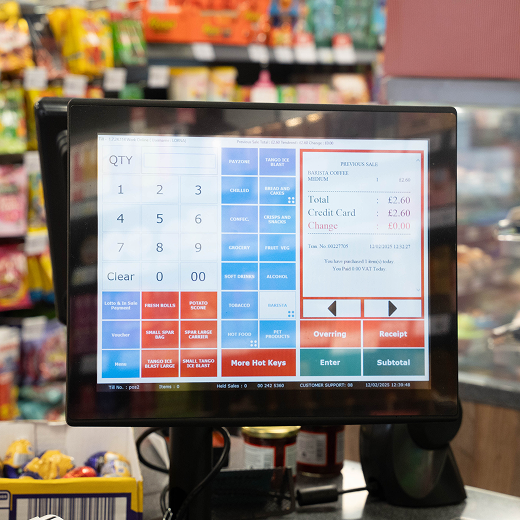
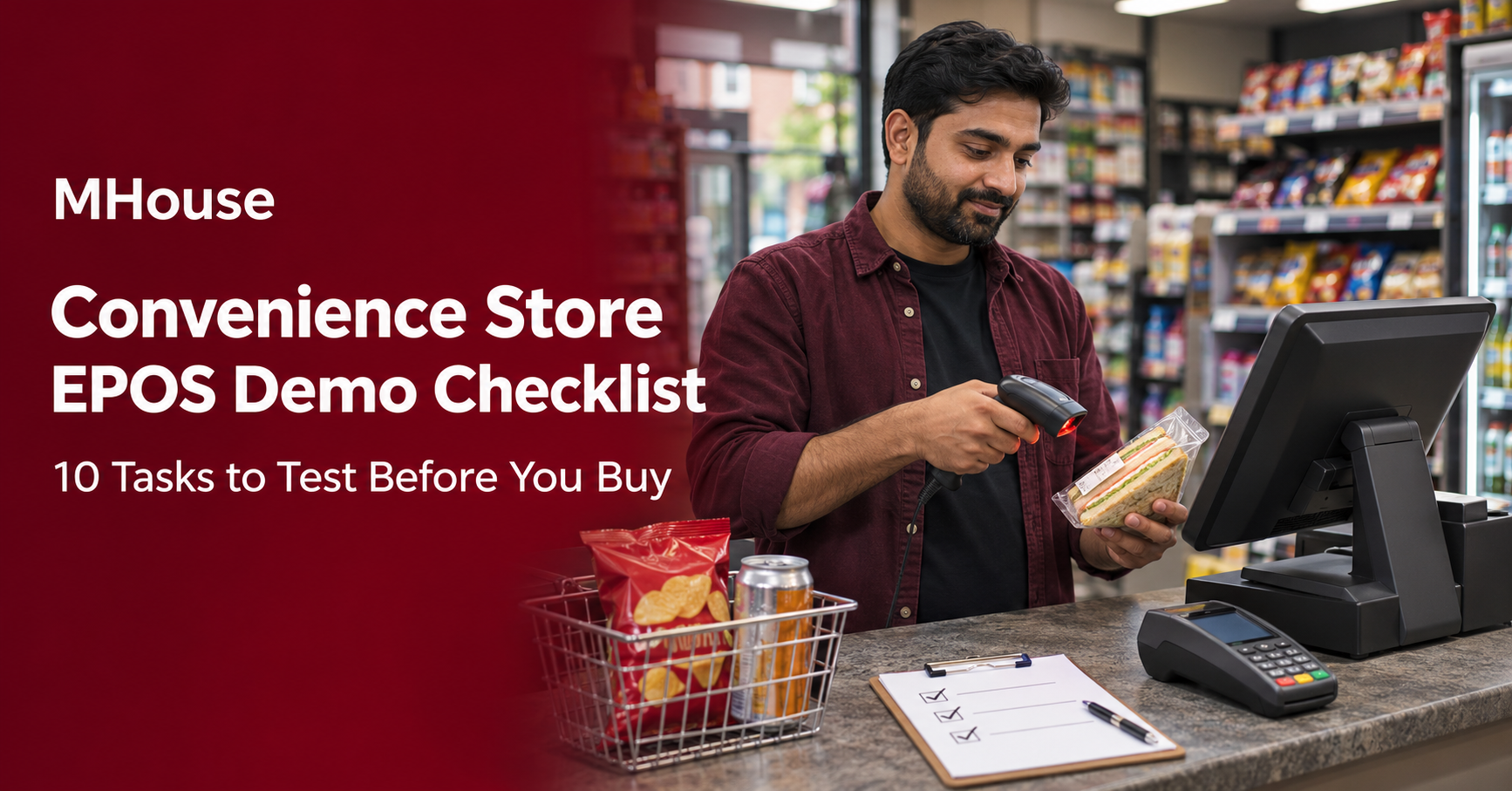
Before you buy a convenience store EPOS system, ask the supplier to put a real shop basket through the till. Start with a meal deal, add a price-marked pack, then refund one item and check what happened to stock. In a few minutes, you’ll see how the till, stock records and reports work together.
Use the ten tasks below to run the same demo with every supplier. Bring examples from your shop so you can judge how the system would fit your staff, your wholesalers and the way you trade.
What to bring to your EPOS demo
- A few sample products or barcodes, including a price-marked pack and a product you regularly put on offer.
- A sample wholesaler delivery note and the names of any suppliers or symbol groups you need to connect.
- A list of your tills, scanners, receipt printers and card terminals, with model numbers if you want to keep them.
- One task your staff find slow today, such as booking in stock or checking a discrepancy at close.
Ask for a test till and use dummy transactions. If you’re replacing an existing system, bring a small anonymised export so the supplier can show what it can import.
10 tasks to test live before you buy
1. Put a mixed basket through the till
Scan a drink, a snack and a price-marked pack. Add several of the same item, search for a product by name, then remove an item before taking payment. Ask a colleague who normally works on the till to repeat the sale. Check how quickly they can find a product or correct a mistake when a queue is building.
2. Book in a wholesale delivery with a shortage
Use a delivery note for three cases of 12 cans and say only two cases arrived. Ask the supplier to book in the delivery and show the updated stock figure. The stock should increase by 24 cans, and you should be able to see that 12 are missing from the delivery. If your wholesaler supplies electronic product or delivery files, ask to see which files the system can use and which details staff still need to enter. Review the MHouse integrations directory before your demo.
3. Run a meal deal and test an excluded item
Set up a £3.50 meal deal using a £2.80 sandwich, a £1.30 snack and a £1.10 drink. Scan all three and check that the till applies the £1.70 saving automatically. Swap in a drink that’s outside the offer and check the basket recalculates. Then ask where you can see how many deals sold and how much you discounted.
4. Change a price and check it at the shelf and till
Pick a weekend promotion and set the start and end times. Check which price appears at the till before, during and after the offer in the test environment. Ask to see how the change reaches a printed or electronic shelf label. If you have more than one till, ask how staff can tell when each till has received the update. See how MHouse electronic shelf edge labels fit into the price-change workflow.
5. Take a card payment and refund one item
Use a test payment to see whether the total reaches the card terminal from the till or staff enter it by hand. Find the original sale, refund one item and check the receipt, transaction history and stock record. Ask the supplier to demonstrate what staff see after a declined payment and how they confirm the final payment status before retrying.
6. Test staff permissions on a refund or price override
Sign in as a cashier and try a refund that your shop would normally require a manager to approve. Ask the supplier to show the approval step, then find the transaction in the audit trail. Look for who requested it, who authorised it, the amount and the time. Check whether you can set different permissions for supervisors and new starters.
7. Scan an age-restricted product
Scan an age-restricted item alongside ordinary groceries. Check when the prompt appears and how staff cancel the restricted item so the customer can pay for the rest of the basket. If self-checkout is on your quote, ask to see the same transaction from the customer’s screen and the staff approval screen. Use the demo to see whether the workflow fits your store policy and staffing. Explore MHouse self-service checkout if you’re considering a kiosk.
8. Ask what happens if the internet goes down
Ask for a controlled outage on a test till. See whether you can complete a cash sale, what happens to card payments and which functions are affected. Bring the connection back and check that the transaction appears once in the sales report and stock updates as expected. Ask which parts depend on the EPOS setup and which depend on the card payment provider.
9. Close the till and investigate a cash difference
Ask the supplier to run an end-of-day report, then enter a test cash count. If the till expects £140 and staff count £138, check that the system flags a £2 shortage and shows where to investigate it. Look for refunds, cash removed from the drawer and differences by till or operator. Then ask how you’d match card totals to the payment provider’s settlement. Review MHouse Back Office for stock and reporting workflows.
10. Import a sample product file and prove the records work
If you’re switching systems, ask the supplier to import a small file containing product names, barcodes, prices and opening stock. Scan a few imported items and compare the till prices and stock counts with the original file. Ask what happens to supplier references and sales history, and who corrects rejected or duplicate records. If you’re opening a new shop, use a sample wholesaler file and check how staff add a product that’s missing from it.
EPOS demo scorecard
Print this table or copy it for each supplier. Score a task 2 if it worked as your shop needs it to, 1 if it worked with a manual step, or 0 if it failed or the supplier couldn’t show it. Use the notes column to record any extra modules, hardware or follow-up tests.
Supplier and package ____________________ Demo date ____________________
| Task | Score (0–2) | Notes or extra costs |
|---|---|---|
| 1. Mixed basket | ||
| 2. Wholesale delivery | ||
| 3. Meal deal | ||
| 4. Shelf and till pricing | ||
| 5. Card payment and refund | ||
| 6. Staff permissions | ||
| 7. Age-restricted sale | ||
| 8. Internet outage | ||
| 9. End-of-day close | ||
| 10. Product import | ||
| Total out of 20 |
Mark your must-have tasks before each demo. If you rely on a particular wholesaler feed or need manager approval for refunds, follow up on those items before comparing the overall scores.
What to get in writing after the demo
Ask for a quote that names the tills, hardware, integrations and modules used in the demo. Confirm which devices you can reuse, who handles data migration and staff training, and what support is available during your trading hours. Ask the supplier to show setup charges, recurring fees, any separate card processing charges and whether the figures include VAT. Use our UK EPOS cost guide to compare quotes on the same basis.
Book a convenience store EPOS demo with MHouse
Tell us how many tills you run, which wholesalers you use and which tasks you want to see. Bring a sample basket or an example from a recent shift, and use the checklist to see how MPOS Retail would fit your shop.